
Dell PowerEdge R760 “No Boot Device Available” After Power Interruption — ESXi Boot Recovery
The customer reported that a Dell PowerEdge R760 could no longer boot normally after a power interruption. The screen showed “Boot Failed: Windows Boot Manager” and “No boot device available.” Instead of immediately replacing the system disk or reinstalling ESXi, we first verified whether the original boot device could still be detected and started manually.
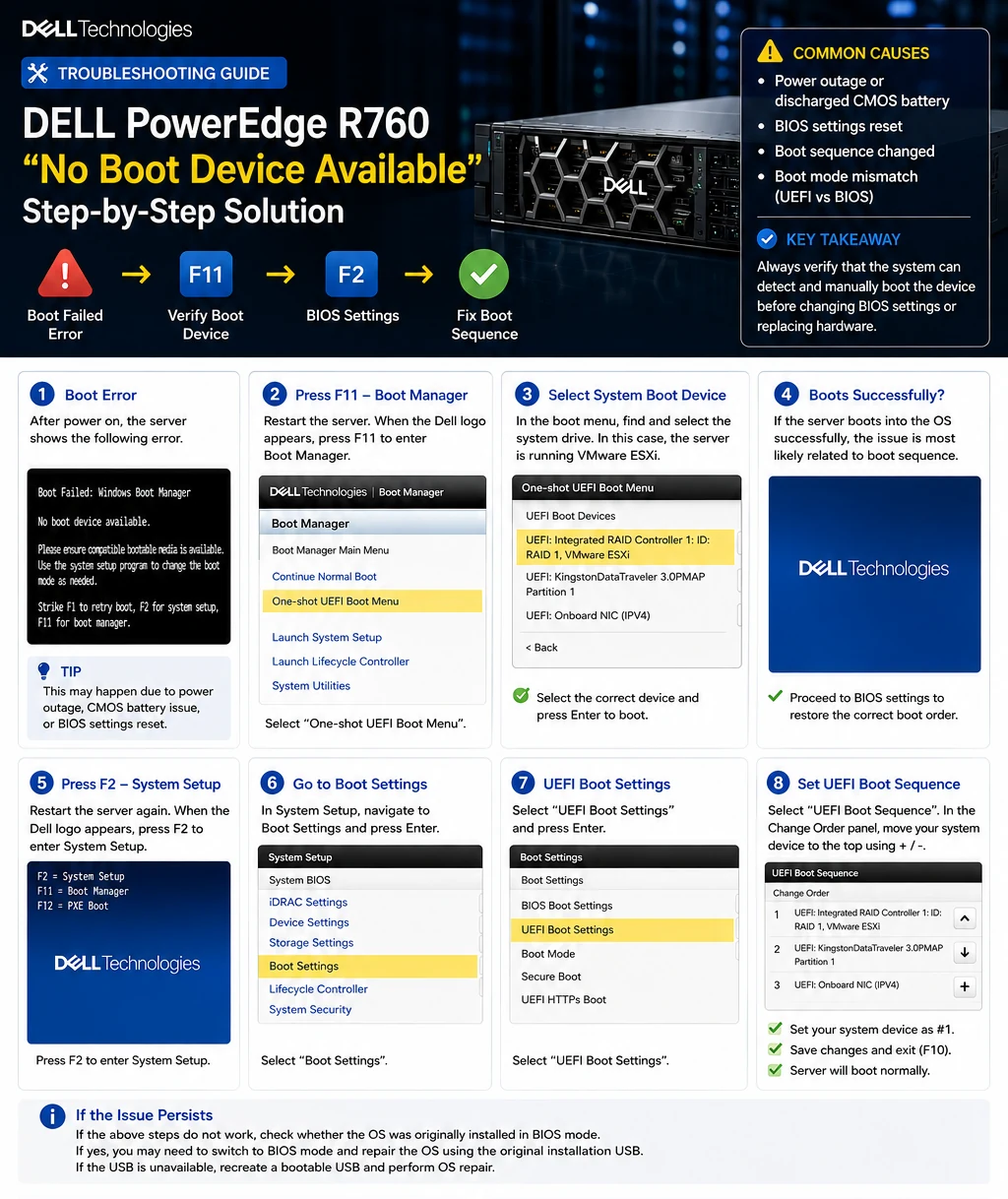
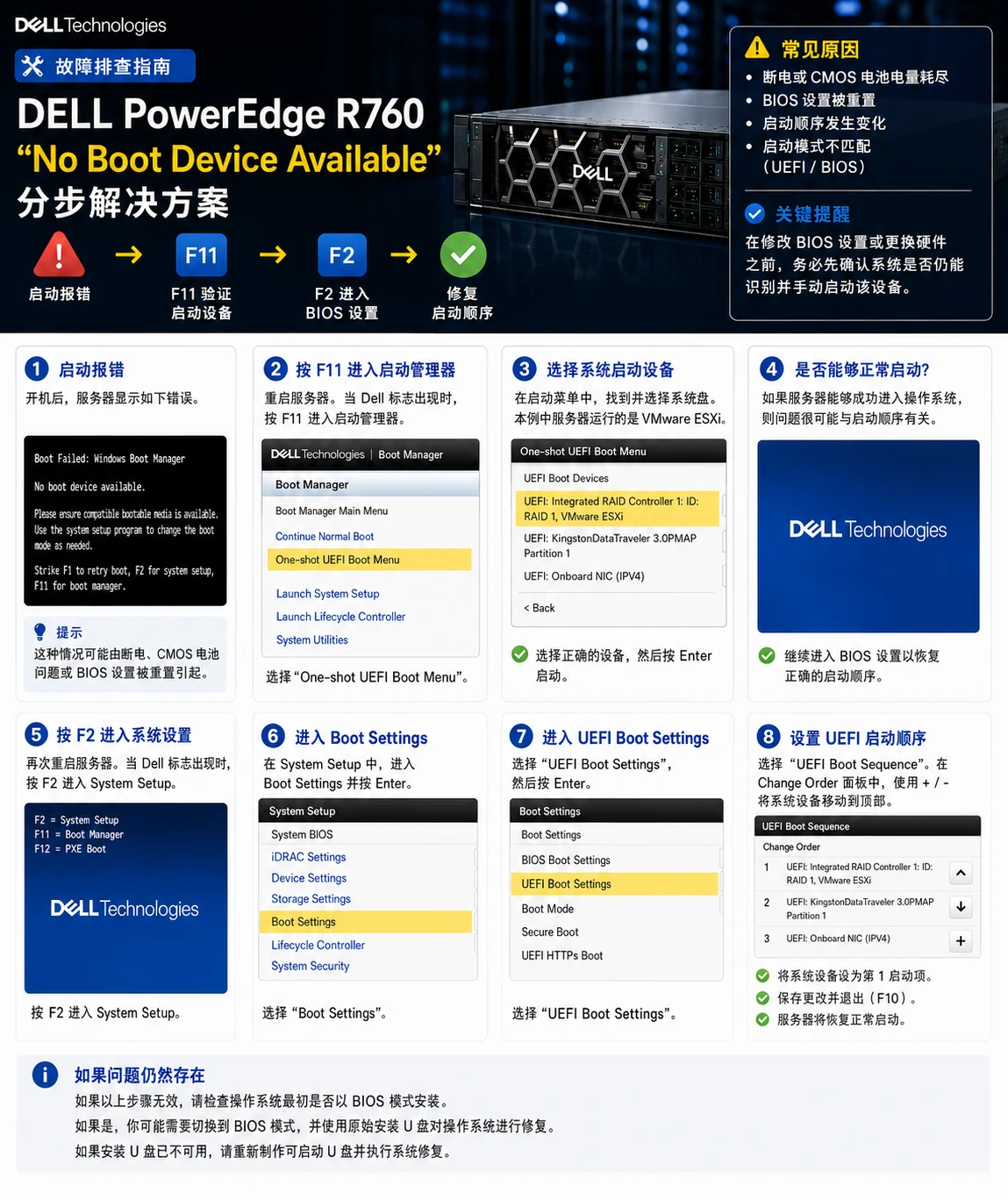
Observed Symptom
After the power interruption, the server did not enter VMware ESXi through the normal boot path and reported that no boot device was available. This type of message can indicate several different issues, so the first goal was to separate a storage or operating-system failure from a firmware boot-configuration problem.
Initial Verification
We restarted the R760 and entered F11 → Boot Manager → One-shot UEFI Boot Menu. The VMware ESXi boot entry was still present, and selecting it allowed the server to boot successfully. This was the key diagnostic result: the boot device was accessible and ESXi remained bootable, so immediate disk replacement or OS reinstallation was not the first action to take.
Boot Configuration Check
With the system device verified, we restarted the server and entered F2 → System BIOS → Boot Settings → UEFI Boot Settings → UEFI Boot Sequence. The correct ESXi entry was restored to the appropriate boot position, the configuration was saved, and the server was restarted.
Why the Troubleshooting Sequence Matters
“No boot device available” does not automatically mean that the system disk has failed. A structured check helps answer two different questions: can the server still detect and manually boot the system device, and is the firmware configured to boot that device automatically? Separating these questions can prevent unnecessary hardware replacement, reinstallation and avoidable downtime.
Result
After the UEFI boot sequence was corrected, the Dell PowerEdge R760 returned to normal boot operation and VMware ESXi loaded successfully. If a similar case does not respond to the UEFI boot-order check, the next step is to confirm whether the operating system was originally installed in UEFI or legacy BIOS mode before making further changes.
Need help with a Dell PowerEdge boot, BIOS, ESXi or server hardware issue? Send us the server model, fault message and screen photos. We can help review the symptoms and recommend the next diagnostic step.
Discuss a Dell server troubleshooting case